
Conga CLM Templates: A Practical Guide from Real-World Implementations
In the world of Salesforce and Contract Lifecycle Management (CLM), Conga CLM Templates act as the bridge between your CRM data and the documents your business uses. Whether it’s a complex or a simple document, the template is the engine that drives the final output.
In real projects, taking the time to set up templates properly from the start makes a big difference. Documents come out clean, the right information appears in the right places, and there’s far less need for changes later.
A well-built template keeps the entire document process running smoothly.
This guide is meant to help you create and manage templates the right way, so you can move forward with confidence from day one.

Top 10 Tips to Set Up Conga CLM Templates (From Real-World Implementations)
Once templates are in use, most teams assume everything will work. In reality, this is often where confusion starts. Small changes behave unexpectedly, information appears in the wrong place, and it becomes unclear whether the issue is with the data or the template. What felt simple at first now feels risky to change:
- Stick to the formatting agreed with the business when updating static text or adding merge fields. Any new wording, whether it’s a single word or an entire paragraph, should follow the same font, size, color, and style already used in the document. When formatting stays consistent, documents remain easier to manage, and small text updates don’t turn into bigger formatting problems later.
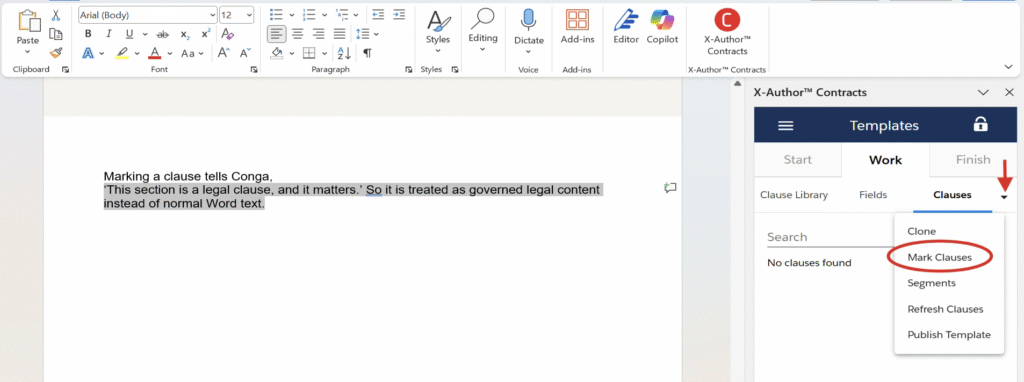
- Use Mark Clause for any paragraph that represents a real legal clause or important contract note that needs to be controlled later. This allows Conga CLM to treat that text as legal content, making it easier to review and compare during approvals or changes. When clauses aren’t marked early, reviews tend to become manual, and small updates are easy to miss. Marking clauses from the start keeps contracts easier to manage over time.
In practice, this is straightforward, open the document in X-Author, select the relevant text, click the down arrow option, choose Mark Clause, and fill all required fields with meaningful name.
3. Keep certain text or clauses read-only when they are not meant to be changed. This applies both while creating the contract and after the document is downloaded.
When important content is locked, it stays the same no matter who is working on the document. If someone tries to edit a read-only clause, they’ll see a warning and won’t be able to make changes, as shown in the screenshot below.

For example, users may be allowed to update customer details or pricing, while sections like Terms and Conditions remain read-only.
In practice, this is simple to set up X-Author for Microsoft Word. Open the document, go to X-Author for Contracts, switch to the Clauses tab, click the settings icon for the clause, and turn on the Mark as read-only option. Once the document is checked in, the clause becomes read-only and works as expected.

4. This approach removes the need to manually add or remove content and helps ensure the contract always includes only what’s relevant for that specific scenario.
Use conditions to control when specific text or clauses appear in a contract. This is useful when some content is only needed in specific cases, such as for a particular deal type, region, customer category, or contract value. Instead of creating and managing multiple templates, conditions allow a single template to automatically show or hide content based on selected details.
For example, an extra Terms and Conditions paragraph may appear only when the customer is international and remains hidden for domestic customers.
In practice, conditions are set directly on the clause in X-Author for Contracts. You can select the clause, click the Condition option, and define when that clause should appear based on agreement details like category, governing law, or source. Once the condition is saved, the clause automatically shows or hides itself based on those values.

When multiple conditions are added to a clause, custom logic becomes important to control how those conditions work together. Instead of treating every condition the same way, custom logic lets you decide the exact combination that should make a clause appear.
For example, a clause may need to appear only when two conditions are true together, or when one condition applies regardless of the others. By using custom logic, you can clearly define these scenarios, such as requiring Condition 1 and 2, or allowing Condition 3 on its own.
This makes clause behavior more predictable and avoids situations where content appears unexpectedly. It also keeps templates flexible without becoming confusing, especially when business rules grow more complex over time.
- Display related records using clear sections or tables instead of placing information randomly in the document. This is especially useful when contracts include repeating details such as products, milestones, contacts, or other related data. When related data is structured properly, the document becomes easier to read and easier to review.

After inserting the data, the table uses field labels as headings. These can be renamed to match business or document requirements.
- Use segments correctly when building contract templates. Segments are useful when an entire section needs to change, such as using different Terms and Conditions for different regions.
- In simple terms, segments decide what content goes into the contract, and conditions decide when that content appears. Using them correctly keeps templates clean, flexible, and easy to manage as requirements grow.

- In practice, segments are applied directly from X-Author for Contracts. You select the relevant text or clause, open the drop-down menu on the right, and choose the Segments option. From there, you can define the condition that controls when the segment should be used and save it.
- Once set, the segment automatically behaves based on that condition.

- When working in X-Author for Contracts, it’s better to think of clauses as reusable pieces of the contract rather than text you simply type into a template.
If a section is important, used across multiple templates, or something you may want to control later, whether it’s legal or not, it’s usually a good candidate to be managed as a clause.
Once a clause is created, it appears in the Clause Library and can be reused across templates. This keeps contracts consistent, reduces manual updates, and ensures approved wording is used every time.
In practice, you create a clause directly in X-Author for Contracts by writing the required content, then click Create New and give the clause a meaningful name.
Select Clause as the type, choose Agreement as the business object, and set the agreement type as needed.

- After filling in the details and checking in the document, the clause is saved and can be reused from the Clause Library in other templates or contracts.
- Insert clauses directly from the Clause Library instead of typing content manually in the template. This ensures that the correct and approved version of the clause is always used.
 Insert this Clause inserts only the clause text and adjusts it to match the template’s existing formatting.
Insert with Clause Formatting inserts the clause along with its original formatting from the Clause Library, keeping fonts, spacing, and styles unchanged.
- Refreshing a clause updates the content in the template with the latest approved version from the Clause Library. When a clause is updated centrally, refreshing ensures the template reflects those changes without manually reinserting the clause.
 In practice, when a clause is updated in the Clause Library, those changes do not automatically reflect in templates where the clause is already used. To apply the latest version, open the template in X-Author for Contracts, go to the Clauses menu, and select Refresh Clauses.

Once refreshed, the updated content appears in the template and is finalized after check-in.

- Cloning in X-Author for Contracts is useful when you need to create a new clause or template that is very similar to an existing one, without starting from scratch. Instead of rewriting content, cloning lets you copy the existing structure and make only the necessary changes.
This is commonly used when a clause or contract is mostly the same but needs small variations, such as regional wording, customer-specific terms, or alternate business conditions. By cloning, you keep the original content intact while quickly creating a new version for a different scenario.
Cloning is done directly from X-Author for Contracts in MS Word. You select the existing clause or template you want to reuse, choose the Clone option, and give the new version a meaningful name.
After making the required changes, you save and check in the document.
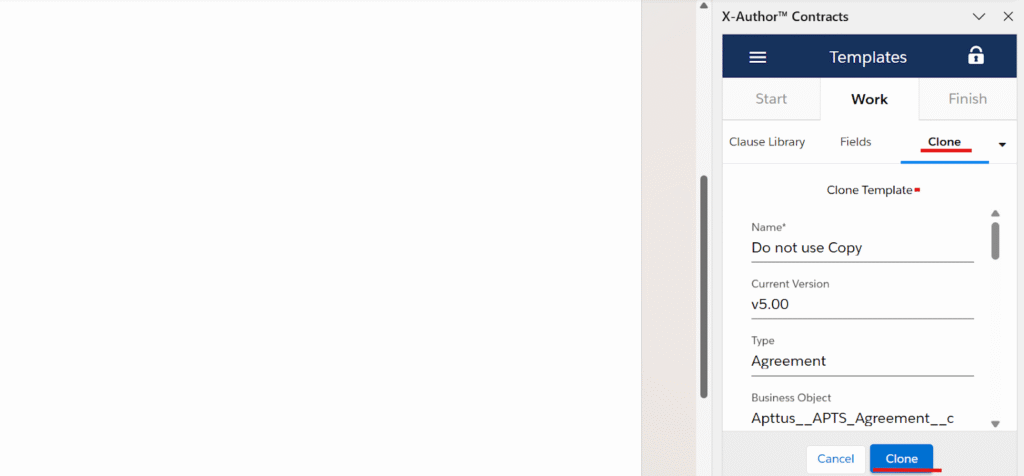
Behind the scenes, X-Author manages template versions automatically. Each time a cloned or updated template is checked in, a new version is created. This lets teams test and improve templates safely without affecting versions already in use, while older versions remain available for reference or rollback if needed.
Key Takeaways
Small setup decisions early save major rework later. Clean formatting, meaningful naming, and clear separation of responsibilities make templates easier to maintain and reduce long-term dependency on consultants or developers.
Design templates for control, not just appearance. Use clauses, read-only settings, conditions, and segments so important content stays protected, reusable, and predictable as contracts evolve over time.
Reuse and structure content wherever possible. Managing repeated text as clauses, using tables or sections for related records, and cloning existing content reduces manual effort and keeps contracts consistent.
Let X-Author handle logic instead of manual edits. Conditions, segments, and clause refresh ensure the right content appears automatically, avoiding risky copy-paste changes and review surprises.
Guided by our core values of Sincerity, Trust, Approachability, Respect, and Curiosity, PinkSamurais is more than a service provider—we’re your trusted partner in achieving contract management excellence.
Conga CLM Templates: A Practical Guide from Real-World Implementations
How to create conga templates?
Conga CLM templates are document structures that merge Salesforce or Conga data into contracts, proposals, and agreements automatically.
What is X-Author in Conga CLM?
X-Author for Contracts is a Microsoft Word-based tool used to create, edit, and manage Conga contract templates and clauses.
What are Conga CLM templates in Salesforce?
Conga CLM templates are pre-configured document frameworks that connect Salesforce CRM data with contract documents. They act as the bridge between your data and final contract outputs, enabling automated document generation with dynamic content, clauses, and formatting.

0 Comments